Understanding the QuickBooks 1099 Efile Service: Forms, Thresholds, and Rules
The QuickBooks 1099 Efile Service lets you prepare, map, and transmit Form 1099-NEC and Form 1099-MISC directly to the IRS from your QuickBooks company file. You use it by setting up contractors with their W-9 details, mapping the expense accounts you paid them from, reviewing the payment summary, and submitting the returns electronically before the filing deadline. This workflow covers the core reporting requirement for businesses that hire independent contractors, freelancers, or unincorporated service providers. Under updated tax rules, for payments made after December 31, 2025 (applicable to 2026 tax year filings and beyond), the standard reporting threshold is $2,000 for non-employee compensation and miscellaneous payments made via cash, check, or direct electronic bank transfers (ACH). Staying up to date on standard 1099 requirements for vendors helps ensure your business remains compliant.
For information returns filed in 2026, the IRS enforces a mandatory electronic filing threshold: if you submit a combined total of 10 or more information returns across forms like 1099-NEC, 1099-MISC, and W-2, you must file them electronically. Paper filing is no longer permitted for businesses meeting or exceeding this aggregate threshold.
| Form Type | Primary Purpose | Common Payment Types | IRS Filing Deadline | Recipient Copy Deadline |
|---|---|---|---|---|
| Form 1099-NEC | Non-Employee Compensation | Subcontractors, independent contractors, professional fees, commissions | January 31 (or next business day) | January 31 |
| Form 1099-MISC | Miscellaneous Information | Rents, prizes, awards, legal settlement proceeds, medical payments | March 31 (e-file) / February 28 (paper) | January 31 (February 15 for Box 8 or Box 10 payments) |
Supported Forms and Native Limitations
The native filing tools in QuickBooks are designed specifically for general contractor management. As a result, QuickBooks handles Form 1099-NEC (Non-Employee Compensation) and Form 1099-MISC (Miscellaneous Information) with native workflows. If you need to manage your independent contractors and submit their annual returns, you can complete the filing process through the appropriate QuickBooks workflow.
However, native functionality stops there. Intuit does not support other common information returns directly inside QuickBooks Online or Desktop. If your company must file Form 1099-DIV for corporate dividends or Form 1099-INT for interest payments, you cannot generate or e-file them natively. For those forms, you will need to utilize specialized third-party filing applications or export your financial reports for external submission.
How the QuickBooks 1099 Efile Service Handles State Filing Requirements
Navigating state tax reporting can be complex because requirements vary across jurisdictions. The IRS coordinates the Combined Federal/State Filing (CF/SF) program, which automatically forwards federal 1099 information to participating state revenue departments.
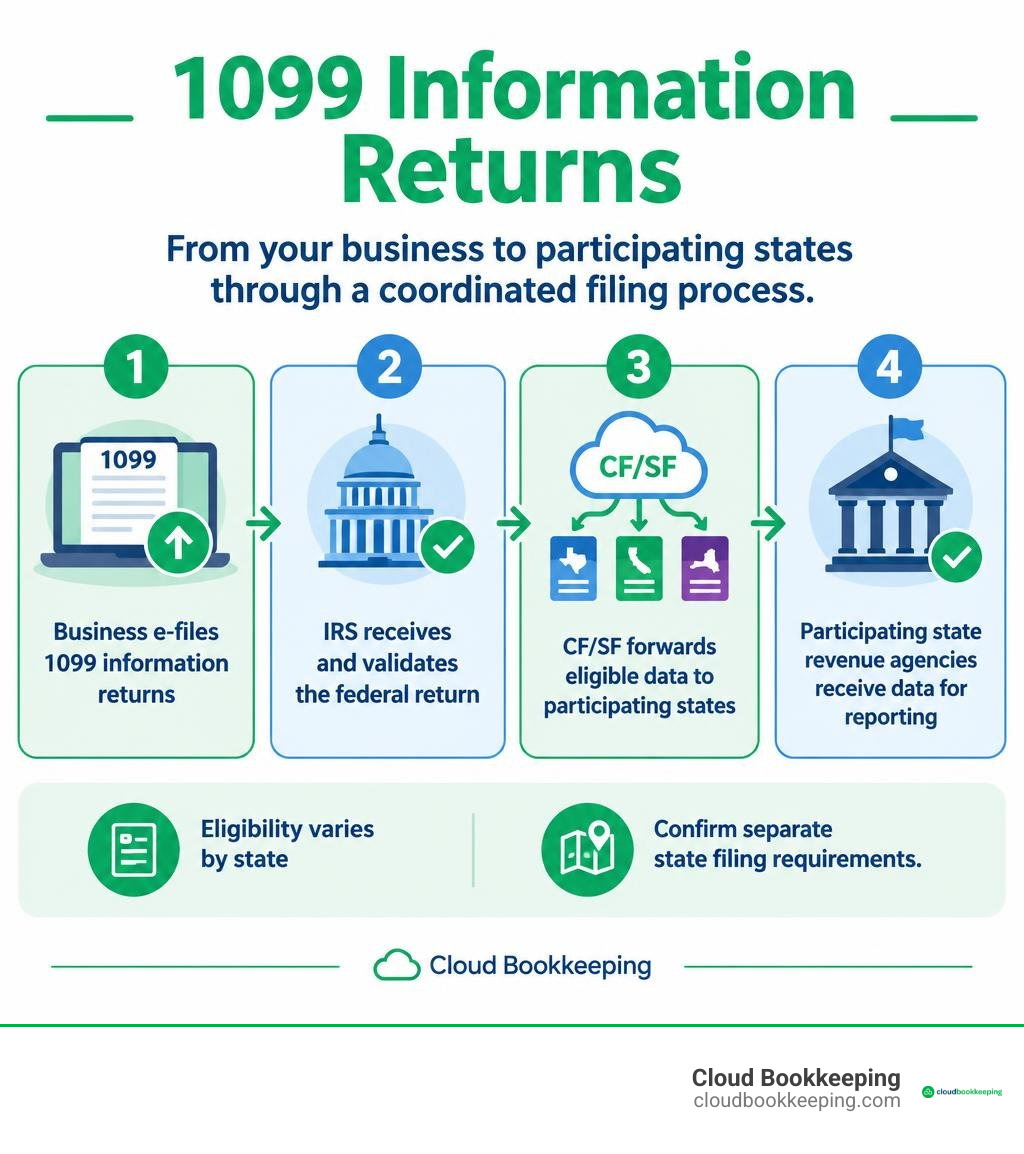
However, participating in the CF/SF program does not satisfy every state’s reporting obligations. Several states enforce direct electronic filing mandates, maintain distinct reporting thresholds, or require separate state reconciliation forms regardless of federal submission. When managing filings, businesses must consult each relevant state tax agency’s specific rules and verify whether their chosen QuickBooks e-file tier or third-party service supports direct state transmission.
Setting Up Contractors and Mapping Accounts in QuickBooks
Accurate tax filings start with proper vendor data entry. Before making payments to any non-employee service provider, request a completed Form W-9. Collecting their legal name, business structure, and Taxpayer Identification Number (TIN), whether an Employer Identification Number (EIN) or Social Security Number (SSN), prevents compliance hurdles later. Reviewing the basic 1099 vendor rules ensures you classify workers accurately from day one.
Adding Independent Contractors in QuickBooks Online
Setting up vendors properly in QuickBooks Online streamlines the entire reporting process:
- Navigate to Expenses or Payroll, then select Contractors.
- Click Add a contractor.
- Enter the contractor’s name and email address. You can check the box to invite them to enter their own tax profile and banking information securely via QuickBooks Workforce.
- If entering information manually, open the vendor’s record, select Edit, check the box labeled Track payments for 1099, and input their TIN and address.
For detailed software navigation, follow the contractor setup steps available in your QuickBooks product.
Configuring 1099 Tracking in QuickBooks Desktop
In QuickBooks Desktop, you must activate 1099 tracking within your company preferences:
- Go to Edit in the top menu bar and select Preferences.
- Scroll to Tax: 1099 and open the Company Preferences tab.
- Select Yes next to “Do you file 1099-MISC forms?”
- Map your Chart of Accounts to the correct form boxes (such as mapping your Subcontractor Expense account to Form 1099-NEC, Box 1).
- Open the Vendor Center, double-click each contractor, go to Tax Settings, check Vendor eligible for 1099, and enter their Tax ID.
Maintaining clean categorization and disciplined data entry is covered in our QuickBooks bookkeeping, helping you avoid messy year-end cleanup.
Step-by-Step Guide to Preparing and E-Filing 1099 Forms
When January arrives, follow a structured workflow to generate, audit, and submit your filings without missing critical deadlines.
For hands-on help keeping vendor records, account mappings, and year-end reporting organized, explore our bookkeeping support.
- Back Up Your Company File: If you use QuickBooks Desktop, create a complete local backup before beginning year-end tax routines.
- Review General Ledger Accounts: Ensure all payments made to contractors throughout the year were categorized to mapped expense accounts.
- Launch the 1099 Wizard:
- In QuickBooks Online: Go to Payroll or Expenses > Contractors > Prepare 1099s.
- In QuickBooks Desktop: Go to Vendors > 1099 Forms > Print/E-file 1099 Forms.
- Verify Company and Contractor Information: Confirm your legal business name, EIN, and contact details match IRS records. Review each contractor’s name, address, and TIN.
- Map Payment Accounts: Select the general ledger accounts that represent contractor labor and link them to Box 1 on Form 1099-NEC.
- Review Payment Thresholds: Check the summary screen to verify which contractors meet or exceed the active reporting threshold ($2,000 for payments made after December 31, 2025).
- Submit and Choose Delivery: Submit your filings electronically to the IRS. For recipient copies, ensure you meet IRS consent rules: affirmative electronic consent is required before providing digital copies via portals like QuickBooks Workforce. If valid electronic consent is not on file, you must print and mail paper copies postmarked by the recipient deadline.
Native QuickBooks 1099 Efile Service vs. Alternative E-Filing Platforms
QuickBooks Online and QuickBooks Desktop offer integrated 1099 preparation workflows, with e-filing available directly through Intuit’s 1099 E-File Service or integrated third-party e-file partners. Alternatively, business owners can use the IRS Information Returns Intake System (IRIS) to submit information returns electronically at no cost.
| Feature / Metric | QuickBooks Online / Desktop E-File | Third-Party E-File Providers | IRS IRIS Portal |
|---|---|---|---|
| Supported Platforms | QuickBooks Online / Desktop | QuickBooks Online, Desktop, Enterprise | Any (via manual entry or CSV upload) |
| Form Types Supported | Form 1099-NEC, Form 1099-MISC | All 1099 series, W-2, 1095 | All 1099 series |
| Direct Software Sync | Built-in workflow integration | Direct API / file sync | No (requires data export/formatting) |
| TIN Matching Available | Included in select payroll/filing tiers | Available on most platforms | Yes (integrated within IRIS) |
| Recipient Delivery | Electronic (with consent) or Mail add-on | Electronic portals or Print/Mail services | Manual recipient distribution required |
Reviewing Excluded Payments and Payment Settlement Networks
One of the most common points of confusion during 1099 preparation is why certain payments disappear from your 1099 totals. Under Internal Revenue Code Section 6050W, payments settled by payment cards (credit cards, debit cards, and store-valued gift cards) or through third-party settlement organizations (such as merchant accounts via PayPal or Stripe) are reportable by the payment settlement entity on Form 1099-K.
QuickBooks automatically excludes transactions recorded under payment methods classified as credit card or merchant processor charges to prevent duplicate income reporting. Only qualifying payments settled via cash, physical check, or direct electronic bank transfers (such as direct ACH or wire transfers) should be reported on Forms 1099-NEC and 1099-MISC.
Troubleshooting Common QuickBooks 1099 E-Filing Errors
Discrepancies often emerge when you run final reports before filing. Using an audit-first approach helps identify and fix these issues quickly.

If you encounter persistent discrepancies or complex back-year adjustments, seeking professional 1099-NEC filing assistance can save time and protect your business from costly submission errors.
Resolving Missing Vendors and Threshold Discrepancies
If a contractor who was paid during the year is missing from your 1099 summary:
- Check Vendor Eligibility: Open the vendor profile and verify that the “Track payments for 1099” (Online) or “Vendor eligible for 1099” (Desktop) box is checked.
- Audit Account Mapping: Open your 1099 setup wizard and make sure the expense account used to record those bills is mapped to Box 1 of Form 1099-NEC. If an expense was coded to an unmapped account (like “General Office Supplies”), QuickBooks will omit the total.
- Review Payment Types: Ensure transactions were not entered as credit card charges.
- Check Threshold Filters: Run a 1099 Review Report with the threshold set to “All Vendors” instead of “Only 1099 Vendors” to see if total qualifying payments fell below the statutory threshold ($2,000 for payments made after December 31, 2025).
Correcting TIN Mismatches and Rejected Filings
Submitting an incorrect name or TIN leads to IRS rejections or CP2100 “B-Notices,” which require you to begin backup withholding on future contractor payments.
Using pre-filing TIN matching helps validate recipient details against IRS databases before submission. If an error is identified after filing or a return is rejected, you must follow official IRS correction procedures: prepare and submit a formal Form 1099 Correction (identifying Type 1 errors for dollar/code errors or Type 2 errors for payee/TIN mismatches) through your e-file service or IRIS, and promptly furnish an updated statement marked “CORRECTED” to the recipient. Maintaining organized vendor files is an essential component of local Texas vendor compliance and clean recordkeeping.
Exporting 1099 Data for IRS IRIS and Alternative Platforms
If you prefer to file using the free IRS IRIS portal or an independent compliance platform, you can export your data directly from QuickBooks.
- Go to your Reports menu in QuickBooks and generate the 1099 Summary or 1099 Detail report.
- Filter the date range for the appropriate tax year (January 1 through December 31).
- Click the Export icon and choose Export to Excel or download as a CSV file.
- Open the exported spreadsheet to verify that business names, addresses, TINs, and payment totals match your source documentation.
- Format the spreadsheet to match the bulk upload templates required by IRIS or your selected software.
Registering for an IRS IRIS account requires an e-Services application and identity verification, which can take up to 45 days to process. Apply well before year-end deadlines to ensure your account is active.
Maintaining clean ledgers year-round makes exporting and reporting straightforward. Small business owners looking to optimize their software setup can explore our structured approach to small-business bookkeeping.
Frequently Asked Questions about QuickBooks 1099 E-Filing
Can I e-file 1099-DIV or 1099-INT forms directly through QuickBooks?
No. QuickBooks native filing only supports Form 1099-NEC and Form 1099-MISC. If you must file Form 1099-DIV for dividends or Form 1099-INT for interest, you must use a dedicated third-party tax filing software or enter the forms manually through the IRS IRIS portal.
What are the key deadlines for 1099-NEC and 1099-MISC filings?
Form 1099-NEC must be filed with the IRS and furnished to recipients by January 31 (or the next business day if January 31 falls on a weekend). For Form 1099-MISC, recipient copies are generally due by January 31, except when reporting substitute payments in lieu of dividends/tax-exempt interest (Box 8) or gross proceeds paid to an attorney (Box 10), which are due by February 15. Electronic submissions of Form 1099-MISC to the IRS are due by March 31.
Why are some contractor payments missing from my 1099 summary report?
Payments are excluded if they were settled via payment cards or third-party payment networks (reported on Form 1099-K under Section 6050W), if the expense account was not mapped during 1099 setup, if the contractor was not marked as 1099-eligible, or if total qualifying payments did not meet the applicable statutory filing threshold.
Conclusion
Managing independent contractor reporting does not have to be stressful. By maintaining accurate vendor W-9 records, mapping your general ledger accounts correctly, and understanding IRS electronic filing rules, you can complete your year-end reporting smoothly and avoid costly penalties.
At Cloud Bookkeeping, based in San Antonio, Texas, our team, led by Charlie Perrin, provides hands-on advisory and complete ledger support to ensure your business remains compliant year after year.
Let our specialists handle your compliance workflows with our dedicated professional 1099 vendor management services, giving you peace of mind throughout tax season.