Understanding 2026 Deadlines and QuickBooks W-2 Preparation Support
QuickBooks W-2 preparation support is how small business owners file W-2 forms accurately and on time using QuickBooks payroll tools — whether you’re e-filing through QuickBooks Online, printing copies in Desktop, or correcting a mistake after submission.
Here’s a quick overview of what you need to know:
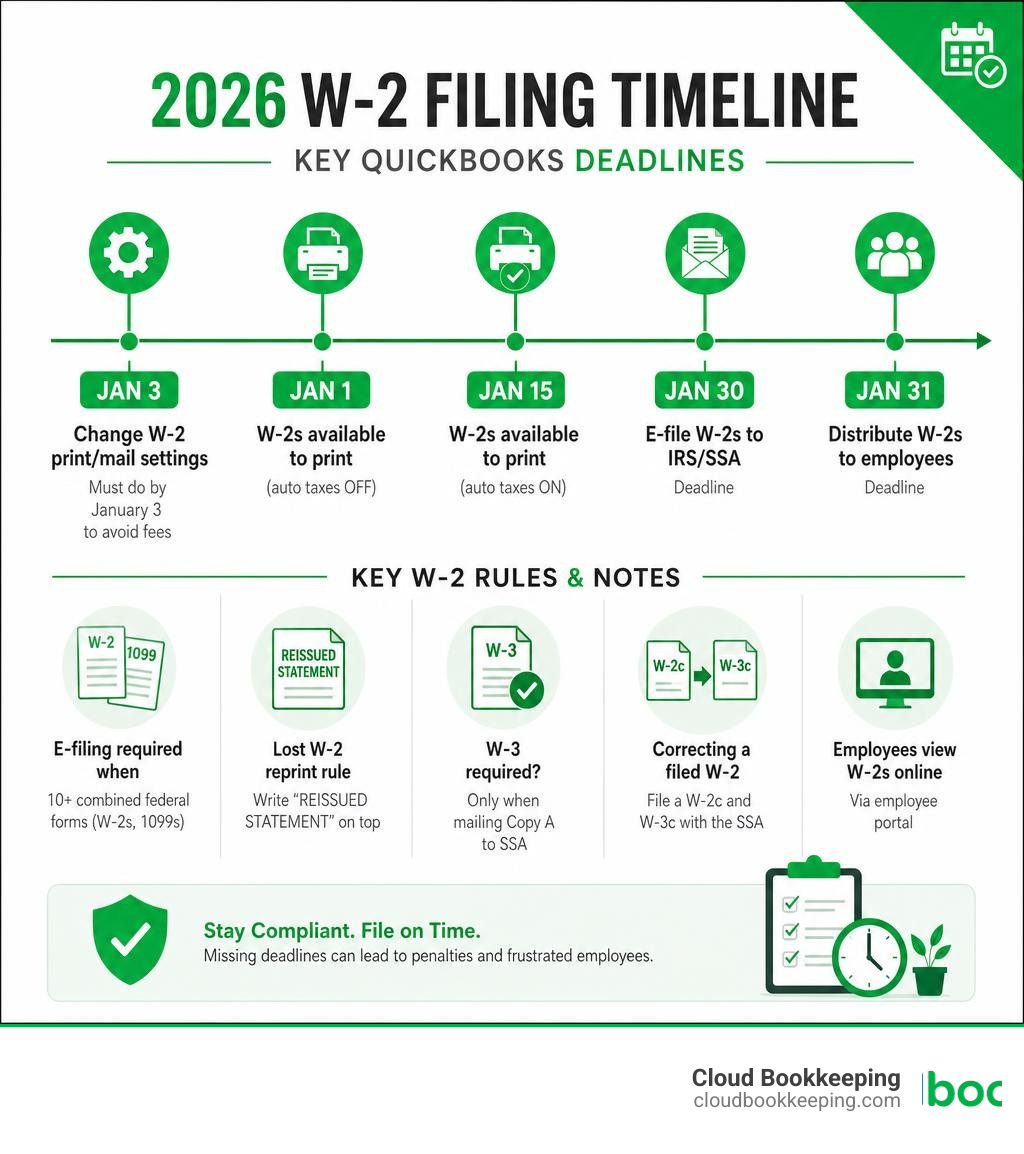
| Task | Key Detail |
|---|---|
| E-file W-2s to IRS/SSA | Deadline: January 30 |
| Distribute W-2s to employees | Deadline: January 31 |
| Change W-2 print/mail settings | Must do by January 3 to avoid fees |
| W-2s available to print (auto taxes ON) | Starting January 15 |
| W-2s available to print (auto taxes OFF) | Starting January 1 |
| E-filing required when | 10+ combined federal forms (W-2s, 1099s) |
| Lost W-2 reprint rule | Write “REISSUED STATEMENT” on top |
| W-3 required? | Only when mailing Copy A to SSA |
| Correcting a filed W-2 | File a W-2c and W-3c with the SSA |
| Employees view W-2s online | Via QuickBooks Workforce portal |
Tax season is stressful for most small business owners. W-2 deadlines come fast, QuickBooks settings can be confusing, and one wrong move — a missed deadline, an incorrect box, a lost form — can mean IRS penalties or frustrated employees.
This guide walks you through every step, from e-filing to printing to fixing errors.
I’m Charlie Perrin, founder of Cloud Bookkeeping, with over 24 years of experience helping small business owners navigate payroll compliance and QuickBooks W-2 preparation support with confidence. Let’s break down exactly what you need to do, step by step.
Meeting federal and state compliance guidelines is the absolute bedrock of running a smooth payroll operation. When managing your year-end responsibilities, you need to know when W-2s are due and available in QuickBooks to avoid penalties, late fees, and unnecessary stress.
2026 W-2 and W-3 Filing Deadlines
The Internal Revenue Service (IRS) and the Social Security Administration (SSA) do not grade on a curve. For the 2026 tax season, the key dates you must commit to memory are:
- January 30, 2026: The deadline to file your W-2 forms electronically with the SSA if you are filing manually.
- January 31, 2026: The deadline to distribute paper or electronic W-2 copies to your employees.
Additionally, the IRS enforces a strict e-filing threshold. If your business files 10 or more combined federal forms (including W-2s, 1099s, and other information returns), you are legally required to file them electronically. Failing to meet this threshold can result in steep penalties per form. Keeping your payroll records organized throughout the year ensures you are prepared well before these deadlines hit. For more details on maintaining pristine year-end data, see how organized payroll records make year-end easier.
Automated Taxes vs. Manual Settings
One of the most common points of confusion for QuickBooks users is how the “Automated Taxes and Forms” setting impacts their W-2 timeline.
- If Automated Taxes is ON: QuickBooks automatically handles the preparation and electronic filing of your federal and state W-2s. However, because the system is processing these forms systematically, your W-2s will not be finalized or available for you to view, print, or download until January 15, 2026. If you attempt to view them before this date, you will see a “Draft Copy: Do Not File” watermark across the forms.
- If Automated Taxes is OFF: You retain manual control. You can generate, review, and print your finalized W-2 forms starting January 1, 2026. However, you bear the sole responsibility of manually hitting the submit button to e-file them before the January 30 deadline.
Misunderstanding these settings is a classic pitfall. To learn more about navigating these options safely, check out our guide to avoiding common payroll mistakes.
Step-by-Step Guide to E-Filing W-2s in QuickBooks
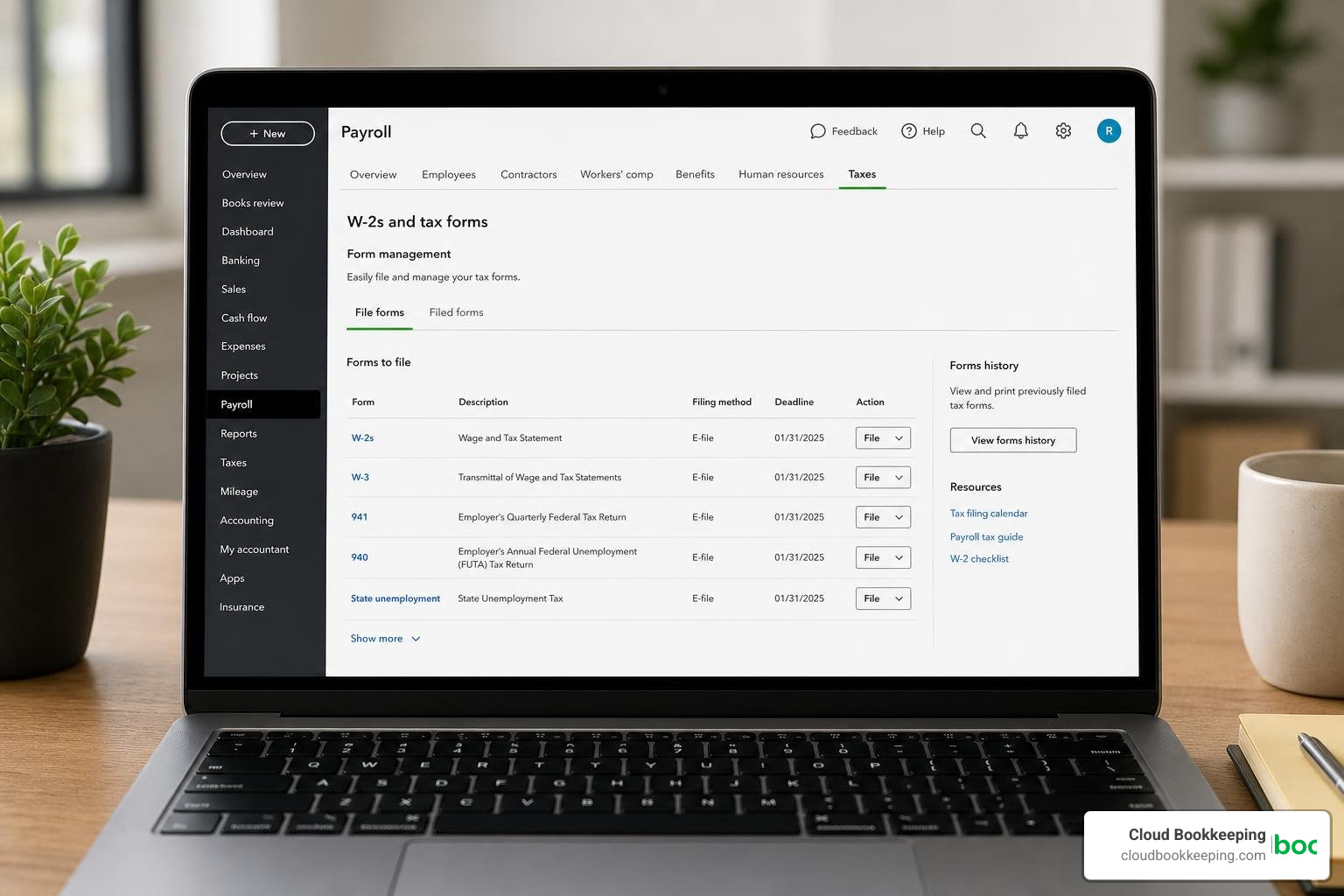
E-filing is by far the most efficient way to submit your year-end forms. When you use the built-in electronic filing services, you do not need to register or file separately with the Electronic Federal Tax Payment System (EFTPS) for these specific year-end forms.
Electronic Filing in QuickBooks Online Payroll
If you are using QuickBooks Online Payroll and have automated taxes turned off (or want to manually push your filings through), follow these steps:
- Sign in to your QuickBooks Online account.
- Navigate to Payroll and select Payroll Taxes.
- Click on the Filings tab.
- Locate W-2 Copies A & D.
- Select File to review the information and submit your forms electronically.
Understanding this layout is key to keeping your business compliant. For a broader look at the entire payroll cycle, see how the payroll process works from start to finish.
Setting Up QuickBooks W-2 Preparation Support in Desktop Enhanced
For those using QuickBooks Desktop Payroll Enhanced, you must configure your e-filing method before submitting. Here is how to set it up and submit:
- Go to the top menu and select Employees, then click Payroll Center.
- Select the File Forms tab.
- Under the Filing Method column, select Change Filing Method and opt for e-file.
- To process your forms, choose Annual Form W-2/W-3 from the list and select Process Payroll Forms.
- Select the employees you are filing for, verify their contact and wage details, and select E-File Federal Forms to submit.
Filing State W-2 Forms and Form W-3 Requirements
State tax compliance is just as critical as federal compliance. If you use QuickBooks Online Payroll with automated taxes enabled, your state W-2 forms are typically filed automatically alongside your federal forms.
However, if you are using QuickBooks Desktop Payroll Enhanced, you may need to file state W-2s separately. For example, states like Missouri require a highly specific W2REPORT.txt file in the standard EFW2 format. QuickBooks Desktop handles this by first generating an intermediate Excel worksheet. You must complete the built-in “Start Interview” process from the Excel Add-Ins tab to convert this worksheet into the final, compliant .txt file for state upload.
What about Form W-3? Form W-3 (the Transmittal of Wage and Tax Statements) is only required by the SSA if you are physically mailing paper Copy A of your W-2s. If you e-file your W-2s through QuickBooks, you do not need to file Form W-3. QuickBooks transmits all necessary summary data electronically. If you still need a copy for your CPA or internal records, you can run a “Payroll Tax and Wage Summary” report to gather your W-3 details. Keeping these records organized is one of the biggest benefits of a modern payroll system, especially when full-service payroll support keeps documentation in order.
Printing, Mailing, and Managing Employee W-2s

Even in our digital world, many employees still prefer or require physical paper copies of their W-2s. To ensure you remain fully compliant, review QuickBooks’ guidance on printing W-2 and W-3 forms correctly.
Paper Requirements and Printing Official Forms
You cannot simply print official employee W-2s on standard printer paper. The IRS requires specific layouts:
- Official Employee Copies: Must be printed on official perforated W-2 paper (available in 3-part or 4-part kits depending on your specific payroll service).
- Employer / Internal Copies: Can be printed on standard, plain white paper for your files.
You can order compliant tax prep kits directly through QuickBooks Checks & Supplies to guarantee that your alignments, boxes, and instructions match IRS specifications perfectly.
Managing Fees for Intuit Printing and Mailing Services
If you utilize QuickBooks Online Payroll with automated taxes enabled, Intuit will automatically print and mail physical W-2 forms directly to your employees’ addresses on file between January 16 and January 31. However, this service incurs additional per-employee mailing fees.
To avoid these additional fees, you must change your W-2 print preferences by January 3, 2026:
- Go to Settings (the gear icon) and select Payroll Settings.
- Find the Form W-2 Printing section and select Edit.
- Choose the option: “I’ll print and mail W-2s to my employees.”
By opting out of the automatic mailing service, you agree to print and distribute the forms yourself, saving your business money. Outsourcing administrative tasks or setting up efficient self-service routes can dramatically lower your overhead, and full-service payroll can reduce that day-to-day burden.
Leveraging QuickBooks Workforce for Paperless Delivery
The absolute best way to eliminate printing costs, paper waste, and postage fees is to invite your team to use QuickBooks Workforce.
By sending your employees an email invitation to Workforce, they can log in to a secure portal, opt-in for paperless delivery, and view or print their own W-2s online. They will have secure access to their current W-2 as well as forms from the prior two years.
Troubleshooting Errors and Handling Lost Forms
Errors happen. Whether an employee notices a misspelled name or you realize a health insurance benefit was coded incorrectly, acting quickly keeps you in the clear. It also helps to keep your QuickBooks file clean throughout the year, as covered in our bookkeeping guide for QuickBooks users.
Correcting W-2 Errors After Filing (W-2c and W-3c)
If you discover a mistake before you submit your W-2s, the fix is easy: simply correct the payroll data directly in QuickBooks and file normally. No correction forms are needed.
However, if you discover an error after the W-2s have been successfully filed with the SSA, you must file a Form W-2c (Corrected Wage and Tax Statement) and a Form W-3c (Transmittal of Corrected Wage and Tax Statements).
- If Automated Taxes is ON: Do not attempt to file a W-2c yourself. You must contact QuickBooks Support directly. Intuit will verify the error, file the W-2c with the SSA on your behalf, and provide you and your employee with corrected copies.
- If Automated Taxes is OFF: You must manually create and file the W-2c and W-3c. In QuickBooks Desktop Payroll Enhanced, navigate to the Payroll Center, select the File Forms tab, and choose Annual Form W-2c/W-3c to begin the correction process.
Note: Use the “Override” function to clear out amounts on lines that do not require changes, leaving only the corrected fields populated. Certain fields—such as the employee’s physical address, prefix, or your business’s legal name—cannot be corrected via a W-2c once filed.
Accessing QuickBooks W-2 Preparation Support for Lost Forms
If an employee loses their original W-2, don’t panic. You can easily reprint a replacement copy:
- You can print replacement copies on standard plain paper rather than expensive perforated paper.
- You must write “REISSUED STATEMENT” clearly at the top of the form.
- Be sure to include a copy of the official IRS W-2 instructions for the employee.
Alternatively, if the employee is registered on QuickBooks Workforce, they can simply log in and download a new copy themselves at any time, saving you the administrative task entirely.
Frequently Asked Questions about QuickBooks W-2s
Do I need to file Form W-3 if I e-file through QuickBooks?
No. When you e-file your W-2 forms through QuickBooks, the system transmits all necessary summary data to the SSA electronically. Form W-3 is only required if you are physically mailing paper Copy A forms to the SSA.
What is the deadline to change my W-2 print settings to avoid fees?
To avoid automatic printing and mailing fees from Intuit, you must change your W-2 print preference to “I’ll print and mail W-2s” in your Payroll Settings by January 3, 2026.
What fields cannot be corrected on a W-2 after filing?
You cannot use a W-2c to correct an employee’s prefix (e.g., Mr., Mrs.), an employee’s physical mailing address, your business’s legal name, or your business’s physical address. If these administrative fields are incorrect, consult a tax professional or QuickBooks support for guidance on how to update your account records.
Conclusion
Mastering your year-end payroll tasks doesn’t have to be a solo struggle. Navigating QuickBooks W-2 preparation support, managing strict IRS deadlines, and ensuring state-level compliance requires time, precision, and deep software expertise.
At Cloud Bookkeeping, led by Charlie Perrin in San Antonio, Texas, we provide small businesses with unmatched customer service, crystal-clear financial reporting, and certified QuickBooks expertise. We help you avoid costly payroll errors and keep your business running smoothly all year long.
Ready to take the stress out of tax season? Contact us today and let’s make your payroll worry-free.